Your NetJOI equipment may include a dedicated Internet modem and a separate TP-Link Deco Wi-Fi unit.
- The modem connects your home to NetJOI Internet.
- The Deco creates your home Wi-Fi network.
You’ll use the TP-Link Deco app to create your Wi-Fi name and password, connect your devices, and manage your home Wi-Fi settings.
Before you start
Please make sure you have:
- Your NetJOI modem
- Your TP-Link Deco Wi-Fi unit
- The Deco power adapter
- The Ethernet cable included with your equipment
- A smartphone or tablet
- The TP-Link Deco app
Download the TP-Link Deco app from the Apple App Store or Google Play Store before your equipment arrives.


How everything connects
Your equipment should be connected like this:
Coax cable → NetJOI modem → Ethernet cable → TP-Link Deco
The modem connects to the coax cable in your home.
The Deco connects to the modem using the Ethernet cable and creates your Wi-Fi network.
Step 1 – Connect your modem
Connect the coax cable to your NetJOI modem and plug the modem into power.
Wait a few minutes for the modem to come online.
If your modem has an Online light, wait until that light is solid before continuing.
Step 2 – Open the TP-Link Deco app
Open the Deco app on your phone.
Create a TP-Link account, or sign in if you already have one.
The Deco app will guide you through the setup process.
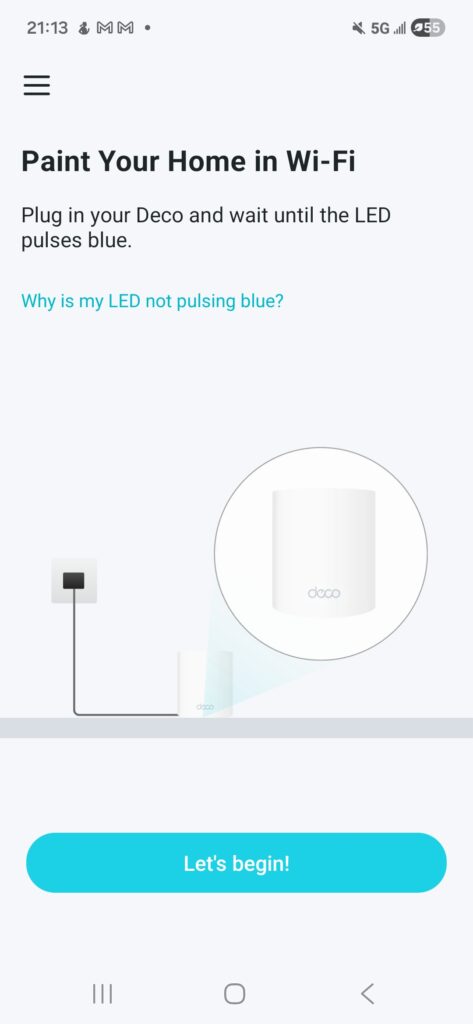
Step 3 – Plug in your Deco Wi-Fi unit
Plug your Deco into power.
Wait until the LED light on the Deco starts pulsing blue.
This means the Deco is ready to be set up.
Step 4 – Select your Deco
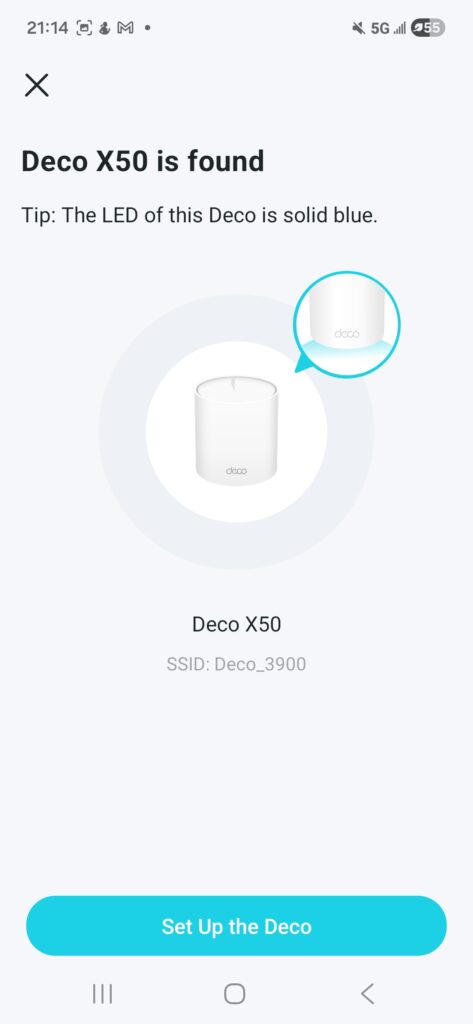
The app should find your Deco automatically.
When you see Deco X50 found, tap Set Up This Deco or Set Up the Deco.
Step 5 – Choose where your Deco is located
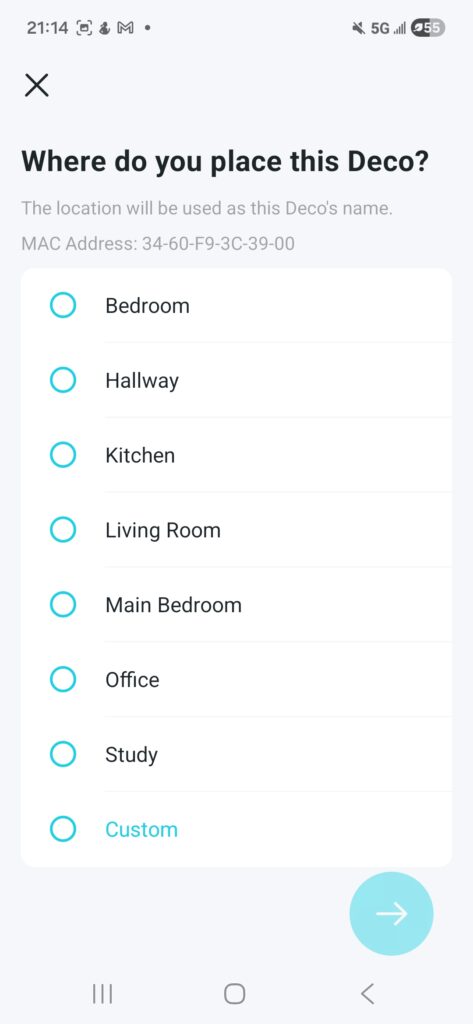
The app will ask where the Deco is placed.
Choose the location that best matches where your Deco is installed, such as Living Room, Bedroom, Office, or Hallway.
This is only used as the Deco’s name in the app.
Step 6 – Connect the Deco to your modem
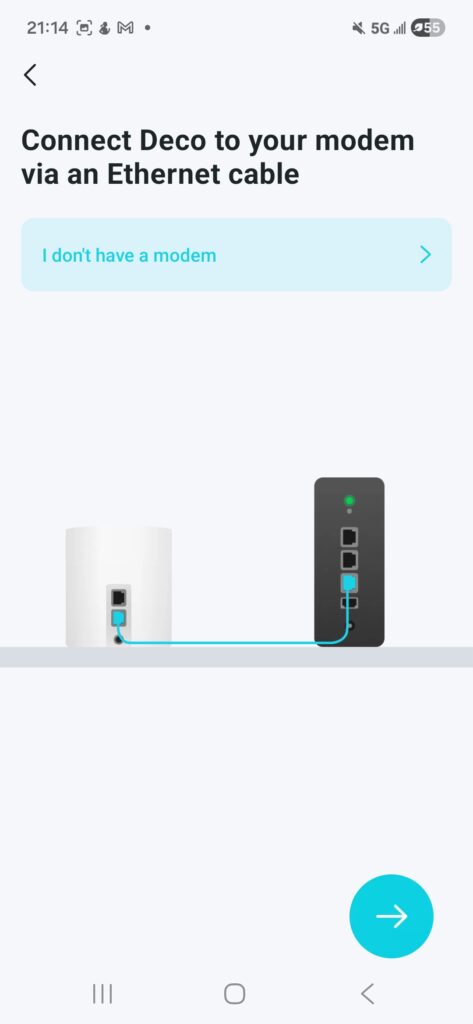
Use the Ethernet cable to connect your Deco to your NetJOI modem.
One end of the Ethernet cable goes into the Deco.
The other end goes into the modem.
For the CODA-56 modem, use one of the Ethernet ports on the back of the modem.
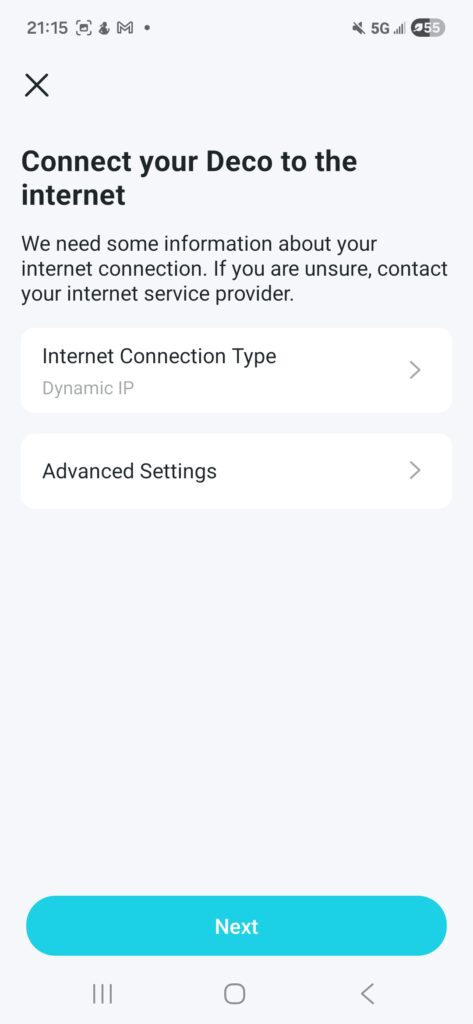
Step 7 – Use Dynamic IP
When the app asks for your Internet connection type, leave it set to:
Dynamic IP
Then tap Next.
Do not change the advanced settings unless NetJOI support asks you to.
Step 8 – Create your Wi-Fi name and password
Next, the Deco app will ask you to create your Wi-Fi network.
Choose the Wi-Fi name and password you want to use in your home.
This is the Wi-Fi network your phones, laptops, TVs, tablets, and other devices will connect to.
Your password must be at least 8 characters.
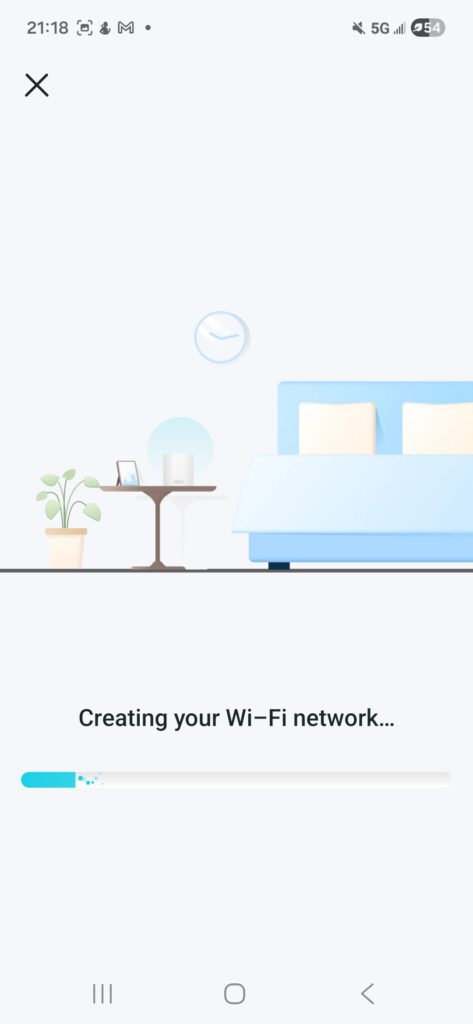
Step 9 – Wait while your Wi-Fi network is created
The app will now create your Wi-Fi network.
This may take a few minutes.
Step 10 – Save the Wi-Fi network to your phone
The app may ask if you want to save the Wi-Fi network to your phone.
Tap Save.
This makes it easier for your phone to connect to your new Wi-Fi automatically.
Step 11 – Connect your devices
Once setup is complete, connect your devices to the Wi-Fi name you created.
You can now connect:
- Phones
- Laptops
- Tablets
- Smart TVs
- Streaming devices
- Game consoles
- Smart home devices
Managing your Wi-Fi
Your Deco Wi-Fi is managed through the TP-Link Deco app.
In the app, you can manage things like:
- Wi-Fi name and password
- Guest network
- Connected devices
- Parental controls
- Family profiles
- Device settings
NetJOI supports your Internet connection, modem service, and rental equipment where applicable. Your in-home Wi-Fi settings are managed by you through the TP-Link Deco app.
Troubleshooting
The Deco app cannot find my Deco
Make sure the Deco is plugged into power and the LED is pulsing blue.
If it is not pulsing blue, unplug the Deco from power, wait 10 seconds, and plug it back in.
The app says there is no Internet connection
Check that:
- your modem is plugged in
- the coax cable is connected to the modem
- the modem is online
- the Ethernet cable is connected from the modem to the Deco
If the modem is not online yet, wait a few more minutes and try again.
I created my Wi-Fi network, but my devices are not connecting
Double-check the Wi-Fi name and password you created in the Deco app.
If needed, open the Deco app and confirm your Wi-Fi settings.
I’m stuck during setup
Please send NetJOI support:
- A screenshot of the Deco app screen where you are stuck
- A photo of the modem lights
- A photo showing the Ethernet cable connected between the modem and Deco
We’ll help you from there.
Need help?
Need help? Visit our Support page to contact NetJOI. Please include screenshots or photos if possible so we can see where setup is getting stuck and help you faster.